
 geopapa.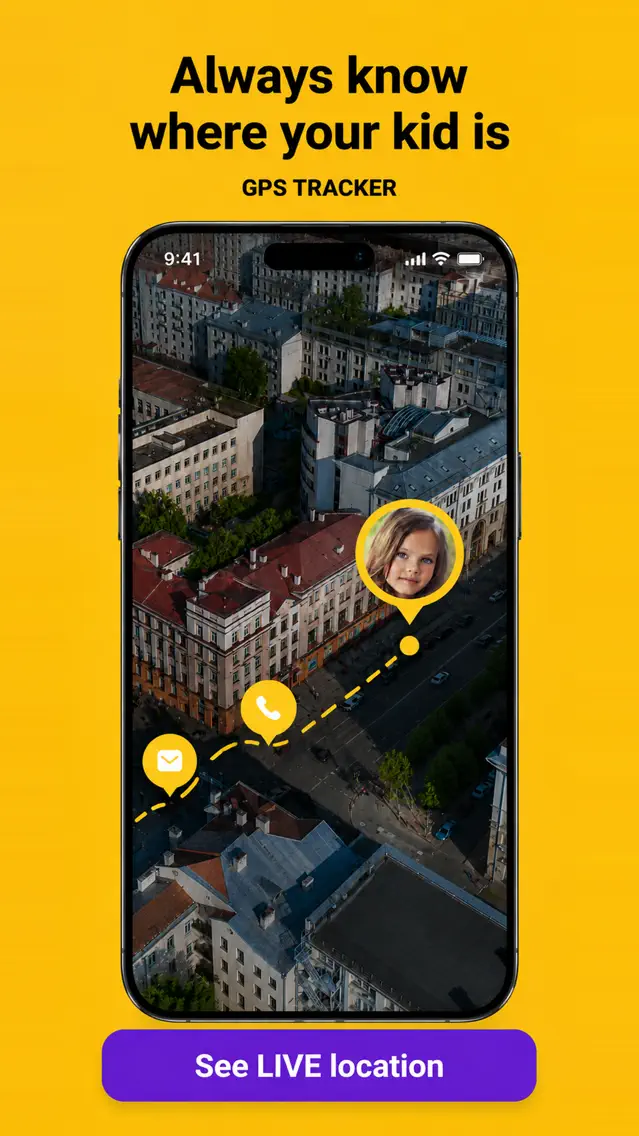
Published by the Geopapa team. This is our own product guide.
Still choosing? Read our GPS tracker for kids buying checklist for phone requirements, free options and a practical setup check.
Growing up means going a little further on their own. For parents, that often means one more “Have you arrived?”
A useful cell phone tracker should fit those ordinary moments: the journey to school, a changing pickup point, the trip home after practice. GeoPapa brings location sharing, place notifications and family communication into a parent app, connected to a companion app on your child’s phone.
The appeal is practical. You can check a location when you need it, choose an alert for a familiar destination, and keep plans in the family chat. Start with the routine that matters most to you and your child, then decide together how much checking makes sense.
Small updates. A calmer day.
Here is how GeoPapa’s main features can fit into a normal school day.
A family map for the moments between places
Open the map to see your child’s latest reported position. If pickup plans change, it gives you a starting point for deciding where to meet. Location history lets you look back at recorded points along a journey. Check the update time: a pin can show an earlier position when the phone has lost its connection. See GeoPapa’s family locator.
A heads-up when they reach school
Save an area around school, home or an after-school club. Choose arrival or departure notifications for the places you care about. For the morning walk, an arrival update can be the check-in you agreed on. Alerts depend on location reports, phone permissions and connectivity, so delivery can be delayed. Explore place alerts.
A familiar way to reach you
Use the family chat for everyday plans. When your child needs your attention, they can send an SOS from their companion app to connected parents. Walk through it together and agree how you will respond. SOS needs a connection and does not contact emergency services. Read about SOS and family connection.
Useful context, shared routines
Check the reported battery level when a phone may need charging. Set tasks with deadlines and rewards to make small responsibilities part of the day. On an Android child phone, block the apps you have agreed on or cap how long they can be used each day. Think “pack your sports kit” or “charge your phone before school”: simple routines you can agree on together. Explore GeoPapa’s parental tools.
A good first use: the school journey. Agree on the route, save school as a place, and choose an arrival notification. Decide what you will do if an update is late. That gives the app a clear job in your family’s day.
Make your first family connection.
Download the parent app to get started.
Two phones. Set up together.
Have your phone, your child’s supported phone and an internet connection ready. Start with a conversation about when you will check location and which notifications you both find useful.
Install GeoPapa on your phone
Open the official download page, choose your app store and follow the parent account setup.
Connect the child’s companion app
Use the connection instructions in GeoPapa to install the correct child app and enter your pairing code. The companion is called GeoPapa Kids or Funfriend, depending on your region.
Review permissions and try an update
Follow the location and background-access prompts on the child’s phone and enable notifications on yours. Check that the first location arrives, then add a familiar place.
Keep the official connection guide handy while you set up.
Choose it for the way your family uses it.
GeoPapa is worth exploring if your child has a supported smartphone and you want location sharing, place alerts and an everyday family connection. Before subscribing, check the tools available for your devices and the offer displayed in your app.
| The question | The practical answer |
|---|---|
| iPhone or Android? | Parent and child apps exist for both. Store availability and individual features vary by country, device and app version. |
| Is it free? | The parent app is free to download, with in-app purchases. Review subscription price, included features, any trial offer and renewal terms in the app. |
| Sound features? | Sound around the child requires an Android child phone, microphone permission and a suitable plan or listening allowance. |
| App restrictions? | With an Android child phone, GeoPapa can block chosen apps and set a daily time limit per app, managed from the Android parent app. The child’s phone needs accessibility, display-over-apps and usage-access permissions for this, and the child sees a notice when an app is blocked. GeoPapa does not offer iPhone app blocking, bedtime schedules or website filtering. |
Make location sharing a family agreement. Explain what the app shares, connect the phones together and revisit the arrangement as your child grows. GeoPapa’s family and privacy guide is a useful place to begin.
A few things parents ask.
Can I track a cell phone by number alone?
No. GeoPapa needs the child’s companion app, a connection code and permissions on that device. You set up the connection with your child.
Will location update if the child’s phone is offline?
A new location cannot reach the parent app without a connection. Check the time of the last update. GPS reception, background restrictions and permissions also affect location reports. See GeoPapa’s location troubleshooting guide if updates stop.
Can another parent join the family?
Yes. GeoPapa supports connecting another parent through its invitation flow. Share access with the people you want included in your family connection.
Does GeoPapa read messages in other apps?
No. GeoPapa has its own family chat. It does not give you access to private messages in other social apps.
How much does a GeoPapa subscription cost?
Check the current offer inside your app for the price in your region, billing period, included features and renewal terms. The download is free; premium features use in-app purchases. Trial eligibility and listening allowances depend on the offer.
Which app should I install first?
Install GeoPapa on the parent’s phone first. Its setup flow points you to the right companion app for your child. Start on the GeoPapa download page.
About this guide: a product overview based on GeoPapa’s official website and the feature and setup pages linked above, checked September 15, 2026. Store illustration updated September 24, 2026: Geopapa App Store. Features and offers may change; confirm details in your app.